Installation help
Diegimo pagalba
Step by step: download, install and switch on LT-Spelling-1 in Word.
Žingsnis po žingsnio: atsisiuntimas, diegimas ir priedo įjungimas Word'e.
The installer is from a small independent publisher and is not signed with a paid code-signing certificate yet, so Windows and your browser show warnings the first time. This is expected – the steps below show exactly what to click.
Diegimo programa yra nuo nedidelio nepriklausomo leidėjo ir dar nepasirašyta mokamu kodo pasirašymo sertifikatu, todėl pirmą kartą Windows ir naršyklė rodo įspėjimus. Tai normalu – žemiau parodyta, ką tiksliai spausti.
-
Download the installer
Atsisiųskite diegimo programą
Click Download (file
LT-Spelling-1-Setup.exe, about 60 MB). It includes everything needed, also the Microsoft VSTO runtime if your PC does not have it yet.Spauskite Atsisiųsti (failas
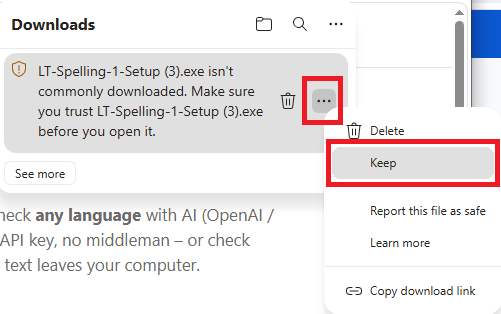
LT-Spelling-1-Setup.exe, apie 60 MB). Jame yra viskas, ko reikia, taip pat Microsoft VSTO runtime, jei jo dar nėra jūsų kompiuteryje.Microsoft Edge may refuse to finish the download ("isn't commonly downloaded"). Open the downloads list (Ctrl+J), click the … next to the file and choose Keep:
Microsoft Edge gali nebaigti atsisiuntimo („isn't commonly downloaded"). Atidarykite atsisiuntimų sąrašą (Ctrl+J), spauskite … prie failo ir pasirinkite Keep:
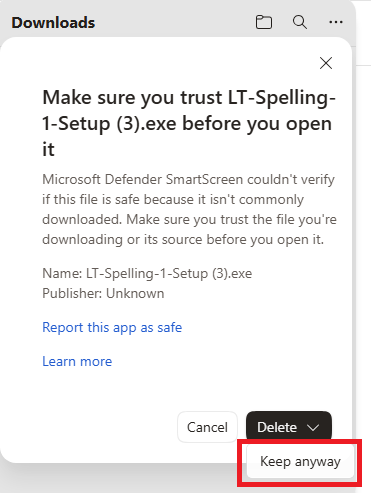
Edge then asks once more – click See more, then the arrow next to Delete and choose Keep anyway:
Edge paklaus dar kartą – spauskite See more, tada rodyklę šalia Delete ir pasirinkite Keep anyway:
Chrome: click Keep (or the ^ arrow → Keep). If you download the file more than once, the name gets a number, e.g.
LT-Spelling-1-Setup (3).exe– that is fine.Chrome: spauskite Keep (arba rodyklę ^ → Keep). Jei failą atsisiunčiate kelis kartus, pavadinime atsiranda numeris, pvz.
LT-Spelling-1-Setup (3).exe– tai normalu. -
Run it – Windows SmartScreen
Paleiskite – Windows SmartScreen
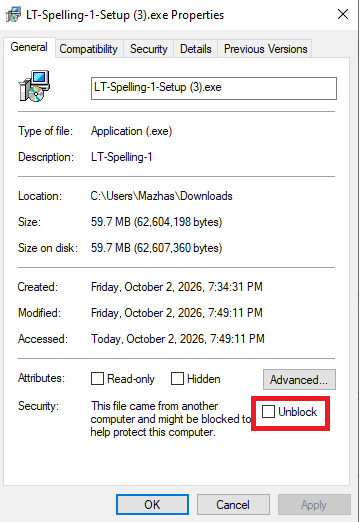
Shortcut: before running, you can right-click the downloaded file → Properties, tick Unblock and click OK. Windows then does not show the SmartScreen warning below at all:
Trumpesnis kelias: prieš paleisdami galite dešiniuoju pelės klavišu spustelėti failą → Properties, pažymėti Unblock ir spausti OK. Tada Windows žemiau aprašyto SmartScreen įspėjimo iš viso nerodo:
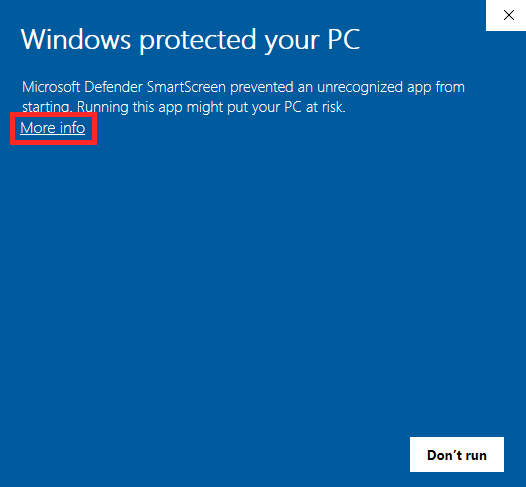
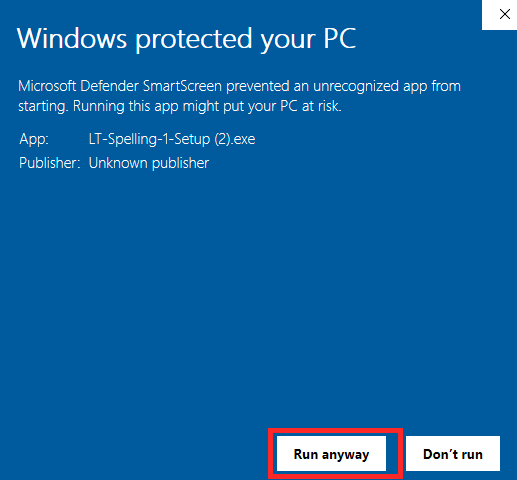
Otherwise: close Word, then double-click the downloaded file. A blue "Windows protected your PC" window appears. Click More info (red frame):
Kitu atveju: uždarykite Word ir du kartus spustelėkite atsisiųstą failą. Pasirodys mėlynas langas „Windows protected your PC". Spauskite More info (raudonas rėmelis):
Then click Run anyway:
Tada spauskite Run anyway:
-
Allow the installer (UAC) and follow the wizard
Leiskite diegimą (UAC) ir sekite vedlį
If your PC has no Microsoft VSTO runtime yet, Windows asks for permission to install it – click Yes. Then the LT-Spelling-1 wizard opens: I Agree → Install → Finish. The add-in itself is installed for your user only (no administrator rights needed for that part).
Jei kompiuteryje dar nėra Microsoft VSTO runtime, Windows paprašys leidimo jį įdiegti – spauskite Yes. Tada atsidarys LT-Spelling-1 vedlys: I Agree → Install → Finish. Pats priedas diegiamas tik jūsų vartotojui (šiai daliai administratoriaus teisių nereikia).
-
Open Word
Atidarykite Word
On the Home tab you should see the Spelling group with Check LT (Tikrinti LT in a Lithuanian Word). If you do, you are done.
Skirtuke Home turėtumėte matyti grupę Spelling su mygtuku Tikrinti LT (arba Check LT, jei Word angliškas). Jei matote – viskas paruošta.
-
If the add-in is not there – enable it in Word
Jei priedo nėra – įjunkite jį Word'e
Word sometimes leaves a new add-in switched off. Do this once:
Word kartais palieka naują priedą išjungtą. Padarykite tai vieną kartą:
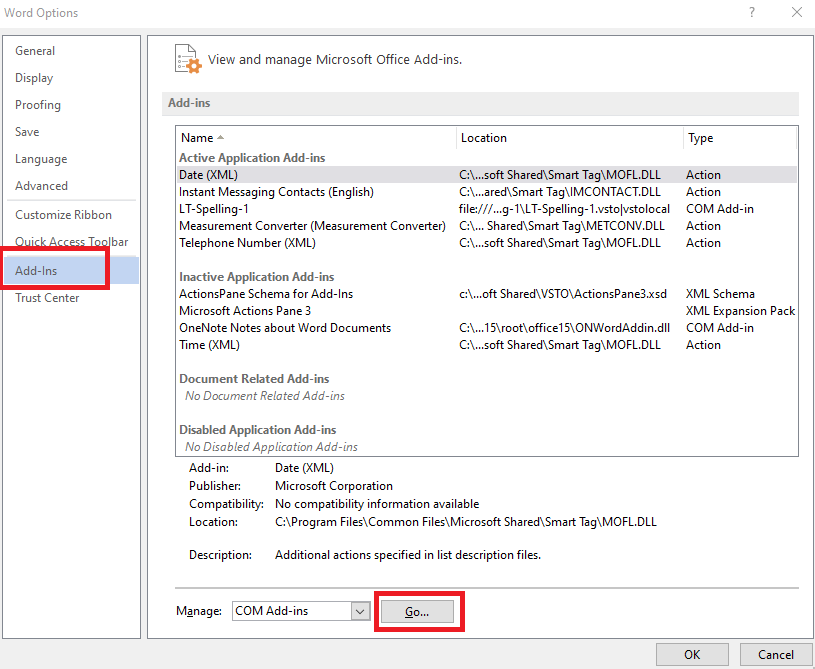
File → Options → Add-ins. At the bottom, in Manage choose COM Add-ins and click Go… (LT-Spelling-1 is listed under Active Application Add-ins when it is on, otherwise under Inactive or Disabled):
File → Options → Add-ins. Apačioje, prie Manage, pasirinkite COM Add-ins ir spauskite Go… (LT-Spelling-1 yra sąraše Active Application Add-ins, kai įjungtas, kitu atveju – Inactive arba Disabled):
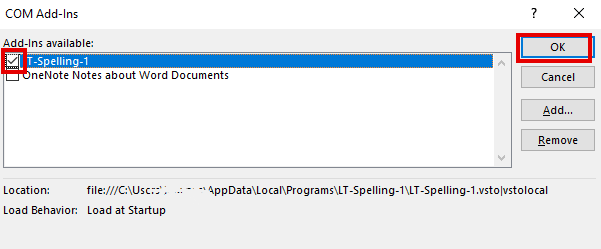
Tick LT-Spelling-1 and click OK (Load Behavior should say "Load at Startup"):
Pažymėkite LT-Spelling-1 ir spauskite OK (Load Behavior turi rodyti „Load at Startup“):
If it is not in that list, choose Disabled Items in Manage → Go…, select LT-Spelling-1 and click Enable, then restart Word.
Jei jo sąraše nėra, prie Manage pasirinkite Disabled Items → Go…, pažymėkite LT-Spelling-1, spauskite Enable ir perkraukite Word.
-
Try it, then add your licence key
Išbandykite, tada įveskite licencijos raktą
The full version works free for 14 days. To use it after that, buy a licence and paste the key via the Licence button in the Spelling group.
Pilna versija veikia nemokamai 14 dienų. Norėdami naudoti ilgiau, įsigykite licenciją ir įklijuokite raktą mygtuku Licencija grupėje Spelling.
How the checker works
Kaip veikia tikrintuvas
Open a document and click Check LT (1) on the Home tab. The whole document is checked and the LT Checker pane opens on the right with every problem found. Click an entry in the list (4) and Word jumps to that spot in your text.
Atidarykite dokumentą ir skirtuke Home spauskite Tikrinti LT (1). Patikrinamas visas dokumentas, dešinėje atsidaro LT Checker skydelis su visomis rastomis problemomis. Spustelėkite įrašą sąraše (4) – Word pereis į tą vietą jūsų tekste.
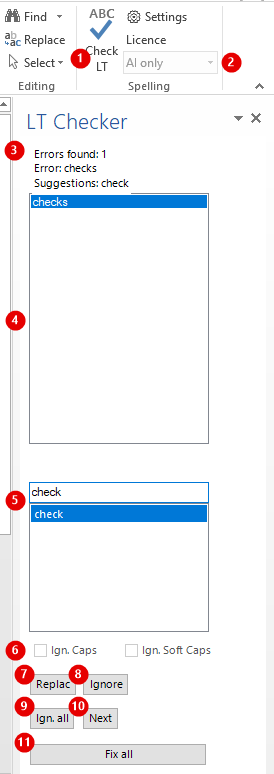
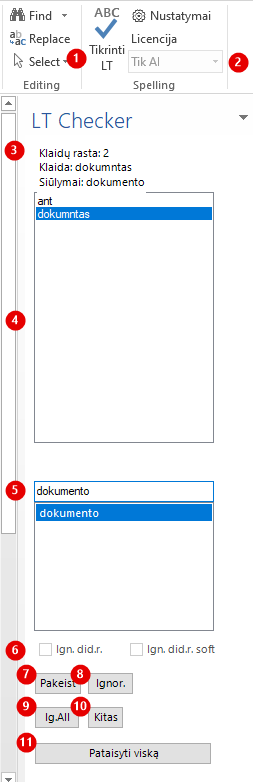
- Check LT – starts the check. Next to it: Settings (AI provider, API key, language) and Licence (trial / licence status and key).
- Mode – how the text is checked: Local (no AI) works fully offline for Lithuanian text and sends nothing anywhere; Hybrid checks locally first and sends only the individual sentences the local checker found doubtful to the AI; AI only sends the whole text for the most thorough, context-aware check. Hybrid and AI-only also check other languages (the language of each sentence is detected automatically) and need your own OpenAI or Claude API key in Settings.
- Summary – number of problems found, the selected wrong word and the suggested corrections.
- Problem list – every problem found. Select one to see it in the document. For AI results an entry can also be a whole sentence with a suggested rewrite.
- Suggestions – the proposed corrections for the selected problem. Choose one from the drop-down to apply it right away, or pick it and press Replace.
- Ign. Caps – skip every word that starts with a capital letter completely (names, places): they are not checked at all. Ign. Soft Caps – still checks the spelling, but accepts a capital letter at the start of an ordinary word anywhere in the sentence (e.g. "I have a Table" is not flagged for the capital T). Without it, a capital in the middle of a sentence is reported unless the word is a name or follows an opening quote, colon or bracket. Tick them before pressing Check LT.
- Replace – replaces the wrong word in the document with the selected suggestion.
- Ignore – drops this entry from the list and leaves the text unchanged; the word is not reported again in this document until you close Word.
- Ign. all – the same, but removes all occurrences of this word from the list at once.
- Next – moves to the next problem without changing anything.
- Fix all – applies the first suggestion to every problem in the list. Whole-sentence rewrites are not applied automatically – you choose those yourself. Skim the list first if the text is important.
- Tikrinti LT – paleidžia tikrinimą. Šalia: Nustatymai (AI tiekėjas, API raktas, kalba) ir Licencija (bandomojo laikotarpio / licencijos būsena ir raktas).
- Režimas – kaip tikrinamas tekstas: Lokalus (be AI) lietuvių tekstą tikrina visiškai neprisijungus ir niekur nieko nesiunčia; Hibridinis pirmiau tikrina lokaliai ir į AI siunčia tik pavienius sakinius, kuriuos lokalus tikrintuvas laiko abejotinais; Tik AI siunčia visą tekstą – nuodugniausiam, kontekstą įvertinančiam patikrinimui. Hibridinis ir Tik AI tikrina ir kitas kalbas (kiekvieno sakinio kalba aptinkama automatiškai) ir reikalauja jūsų paties OpenAI arba Claude API rakto, įvedamo per Nustatymai.
- Santrauka – rastų problemų skaičius, pasirinktas klaidingas žodis ir siūlomi taisymai.
- Problemų sąrašas – visos rastos problemos. Pasirinkite vieną ir pamatysite ją dokumente. AI rezultatuose įrašas gali būti ir visas sakinys su siūlomu perrašymu.
- Siūlymai – pasiūlyti taisymai pasirinktai problemai. Pasirinkite vieną iš sąrašo – ji pritaikoma iš karto, arba pažymėkite ir spauskite Pakeisti.
- Ign. did.r. – visiškai praleidžia kiekvieną žodį, prasidedantį didžiąja raide (vardai, vietovardžiai): jie netikrinami visai. Ign. did.r. soft – rašybą vis tiek tikrina, bet toleruoja didžiąją raidę paprasto žodžio pradžioje bet kurioje sakinio vietoje (pvz. „Aš turiu Stalą.“ nežymima dėl didžiosios S). Be šios parinkties didžioji raidė sakinio viduryje žymima, nebent tai vardas arba žodis eina po atidarančių kabučių, dvitaškio ar skliausto. Pažymėkite prieš spausdami Tikrinti LT.
- Pakeisti – dokumente klaidingą žodį pakeičia pasirinktu siūlymu.
- Ignor. – išmeta šį įrašą iš sąrašo ir tekstą palieka nepakeistą; šiame dokumente žodis daugiau nebežymimas, kol neuždarysite Word.
- Ig.All – tas pats, tik iš karto pašalina visus šio žodžio pasikartojimus iš sąrašo.
- Kitas – pereina prie kitos problemos nieko nekeisdamas.
- Pataisyti viską – kiekvienai sąrašo problemai pritaiko pirmąjį siūlymą. Viso sakinio perrašymų automatiškai netaiko – juos pasirenkate patys. Svarbų tekstą pirmiausia peržiūrėkite sąraše.
Still stuck?
Vis dar nepavyksta?
Write to [email protected] – include a screenshot of the message you see.
Rašykite [email protected] – pridėkite matomo pranešimo ekrano nuotrauką.